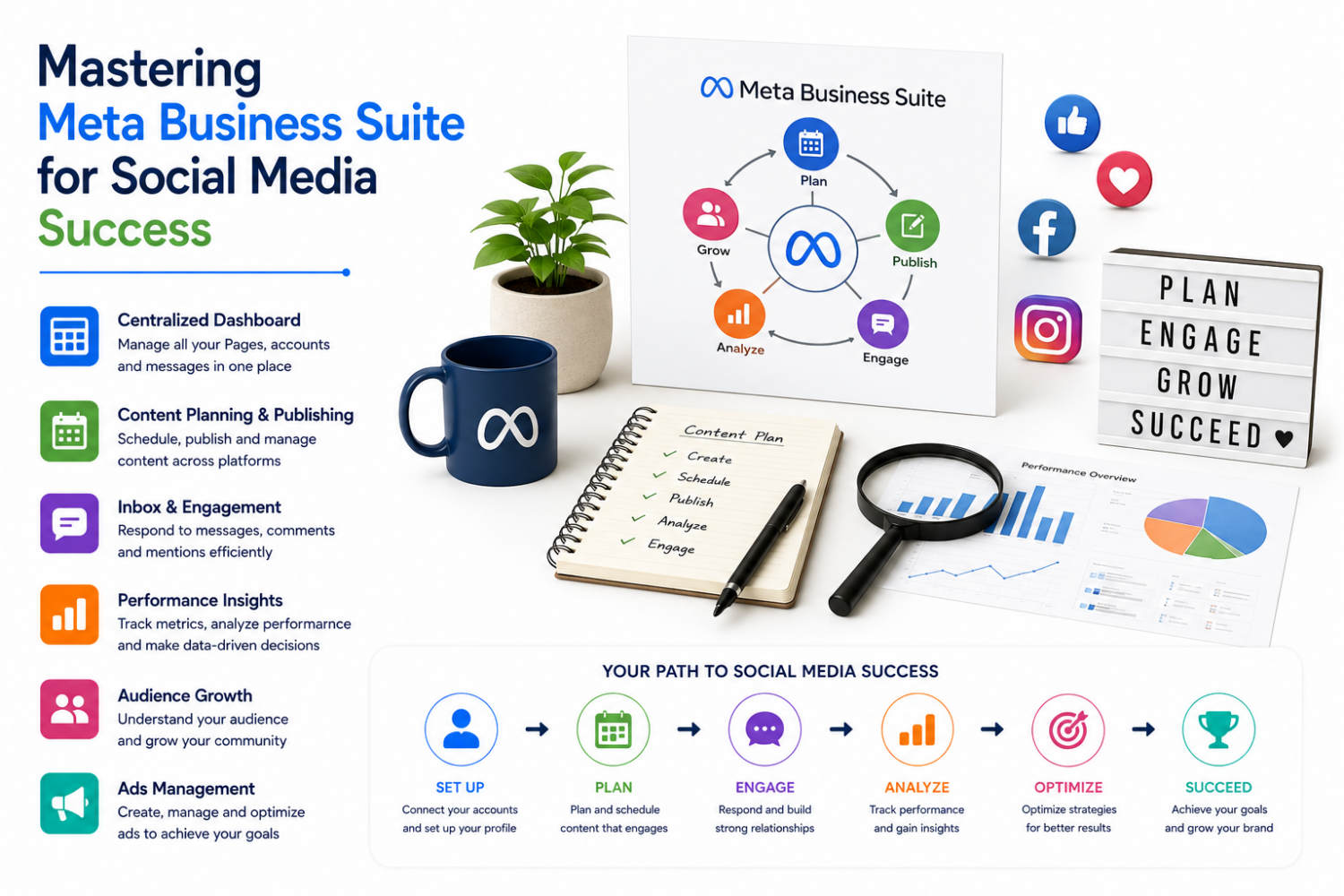
As a digital marketing agency, Marastu understands the importance of having a robust online presence. With the ever-evolving social media landscape, businesses need to stay ahead of the curve to remain competitive. One crucial tool to achieve this is the Meta Business Suite, a comprehensive platform developed by Meta to help businesses manage their Facebook, Instagram, and WhatsApp for Business accounts effectively.
In this article, we will delve into the features and functionalities of the Meta Business Suite, its benefits, and how to get started with setting up your account, profile, and dashboard. We will also explore its advanced features, such as ad management, analytics, and user management, to help you optimize your social media efforts and streamline your workflow.
Setting Up Your Meta Business Suite Account
Getting started with the Meta Business Suite is a straightforward process. First, you need to set up your account, profile, and dashboard. Visit the Meta Business Suite website and log in with your Facebook credentials. If you don’t have a Facebook account, you’ll need to create one first.
Step 1: Setting Up Your Account
Once logged in, you’ll be prompted to set up your business account. Enter your business name, and select the primary Facebook Page for your business. If you don’t have a Facebook Page yet, you can create one during this process.
- Fill in the necessary business details, such as your business email, address, and phone number. Ensure all information is accurate and up-to-date, as this will be visible to your audience.
- Upload a high-quality profile picture and cover photo that represents your brand. Navigate to the About section and fill in your business description, hours of operation, and other relevant details. This information helps customers understand your business and how they can engage with you.
- Set up two-factor authentication by navigating to the ‘Security’ section in your account settings for added security. This ensures that only authorized users can access your business account.
Step 2: Setting Up Your Dashboard
Once you’ve set up your account, navigate to the dashboard to get a feel for the platform’s layout and features. The dashboard can be overwhelming at first glance, but don’t worry, we’ll guide you through the essential features and tools.
- The dashboard is divided into several sections, including the ‘Insights’ tab, which provides detailed performance metrics for your Facebook and Instagram accounts.
- The ‘All tools’ section offers additional features, such as A/B testing, audience management, and lead generation options.
Managing Your Ad Campaigns
The Meta Business Suite offers a range of features to help you create and manage your ad campaigns. With the platform, you can design ads, set objectives, and launch campaigns directly from the dashboard.
Creating and Scheduling Posts
Creating and scheduling posts is a straightforward process in the Meta Business Suite. To create and schedule a post, follow these steps:
- Choose the platform you want to post on (Facebook or Instagram).
- Select the audience you want to target.
- Add a caption, image, or video to your post.
- Choose the posting schedule and date.
- Review and publish your post.
Analytics and Reporting
The Meta Business Suite offers a range of analytics and reporting tools to help you track your performance and make data-driven decisions. With the platform, you can access detailed performance metrics for your Facebook and Instagram accounts.
Accessing Analytics Reports
To access analytics reports, follow these steps:
- Log in to your Meta Business Suite account.
- Navigate to the ‘Insights’ tab on your dashboard.
- Select the platform you want to view analytics for (Facebook or Instagram).
- Choose the date range and metrics you want to view.
- Review and analyze your analytics reports.
Conclusion
The Meta Business Suite is a powerful tool for businesses looking to manage their social media presence and ad campaigns. With its comprehensive features and user-friendly interface, it’s an essential tool for any digital marketing strategy. By following the steps outlined in this article, you can get started with setting up your Meta Business Suite account, managing your ad campaigns, and accessing analytics reports.
By leveraging the Meta Business Suite, you can streamline your workflow, save time, and focus on what matters most – growing your business and engaging with your audience.
Key Takeaways
- The Meta Business Suite is a comprehensive platform for managing your Facebook, Instagram, and WhatsApp for Business accounts.
- The platform offers a range of features, including ad management, analytics, and user management.
- The Meta Business Suite is user-friendly and easy to navigate, making it an essential tool for businesses of all sizes.
- The platform provides detailed performance metrics and analytics reports to help you track your performance and make data-driven decisions.
- The Meta Business Suite is an essential tool for any digital marketing strategy, helping you to streamline your workflow, save time, and focus on growing your business.
Frequently Asked Questions (FAQs)
What is the Meta Business Suite?
The Meta Business Suite is a comprehensive platform developed by Meta to help businesses manage their Facebook, Instagram, and WhatsApp for Business accounts effectively.
How do I set up my Meta Business Suite account?
To set up your Meta Business Suite account, visit the Meta Business Suite website and log in with your Facebook credentials. If you don’t have a Facebook account, you’ll need to create one first.
How do I create and schedule a post in the Meta Business Suite?
To create and schedule a post, choose the platform you want to post on (Facebook or Instagram), select the audience you want to target, add a caption, image, or video to your post, choose the posting schedule and date, review and publish your post.
How do I access analytics reports in the Meta Business Suite?
To access analytics reports, log in to your Meta Business Suite account, navigate to the ‘Insights’ tab on your dashboard, select the platform you want to view analytics for (Facebook or Instagram), choose the date range and metrics you want to view, review and analyze your analytics reports.