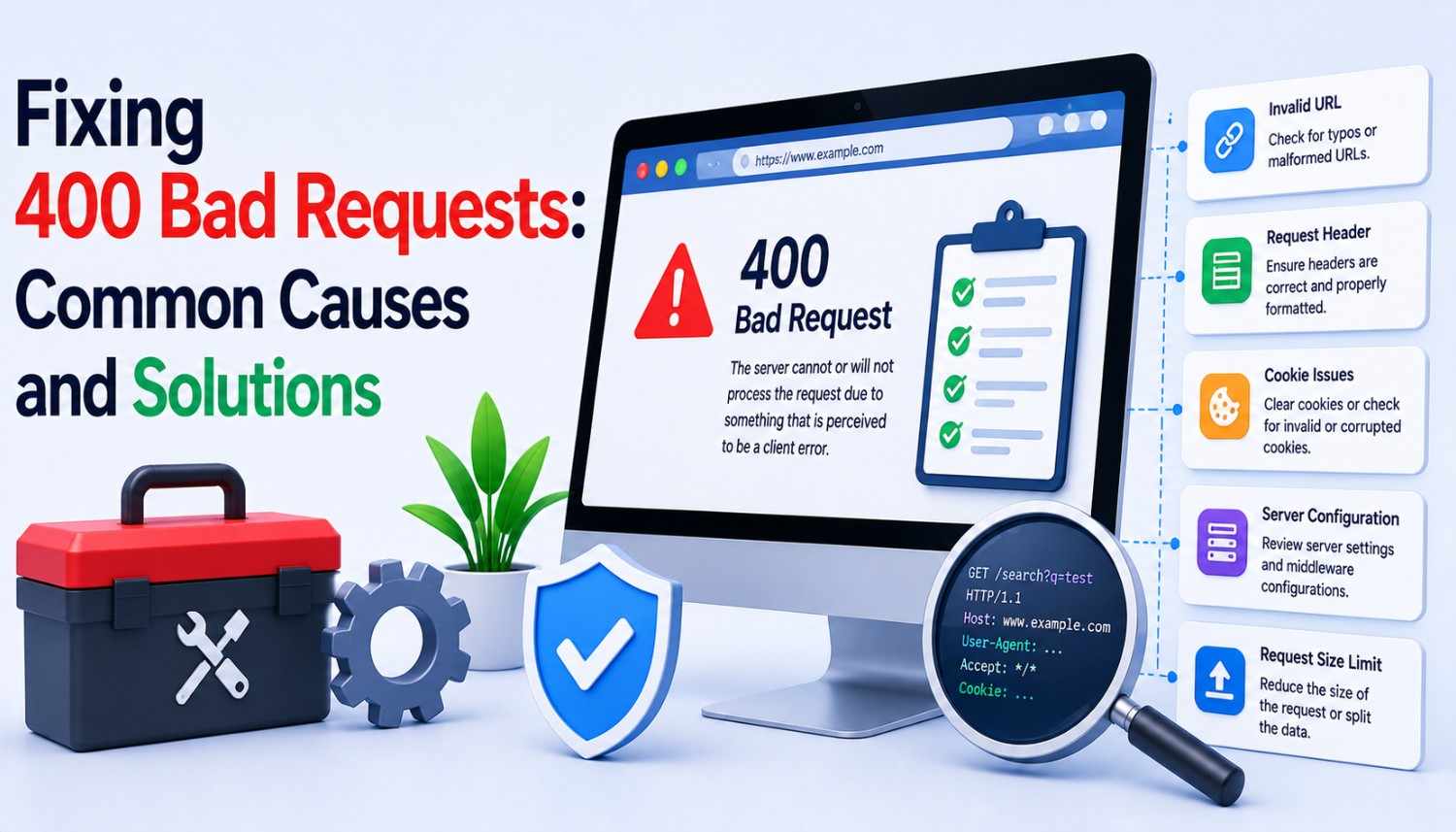
When a browser sends a request to a web server, and the server can’t understand or process it correctly, a 400 bad request error occurs. This is a type of HTTP response status code that indicates an error on the client-side, meaning the issue is coming from the browser, app, or another tool making the request. A 400 bad request error can be frustrating, especially if you’re trying to access a website or complete a task, only to be met with an error message.
There are many different messages servers use to indicate a 400 status code, and the error can look different depending on your browser. However, the common causes of 400 bad requests and their solutions are the same across most browsers. In this article, we’ll explore the most common causes of 400 bad requests and provide step-by-step solutions to help you fix the issue.
Common Causes of 400 Bad Requests
One of the most common causes of a 400 Bad Request error is a problem in the URL, such as extra spaces or special characters. Sometimes, the URL is too long and complex, exceeding the character limits set by browsers. For example, on Chrome, the character limit is around 2,000 characters. If your URL exceeds this limit, you may encounter a 400 error.
Character Limits and URL Errors
- Make sure to keep your URLs short and concise, avoiding special characters and extra spaces. If you need to upload a long URL, consider using a URL shortener to reduce its length.
- Check your browser’s character limits and adjust your URLs accordingly. If you’re using Chrome, you can check the character limit by going to the Chrome settings and searching for “character limit.” You can also use a tool like URL Shortener to reduce the length of your URLs.
- Use a URL analyzer tool to check the length and complexity of your URLs. This can help you identify potential issues and make adjustments to your URLs accordingly.
Invalid Syntax and HTTP Headers
Another common cause of 400 bad requests is invalid syntax outside of the URL that breaks standard rules. This can happen when there’s a missing or incorrect HTTP header in the request, which prevents the server from interpreting or processing it. For example, a missing colon in the Host header can trigger a 400 error.
- Check your HTTP headers to ensure they’re correctly formatted and include all required information. You can use a tool like Postman to test your HTTP headers and ensure they’re correct.
- Use a tool like HTTP Analyzer to inspect your HTTP headers and identify any potential issues. This can help you troubleshoot and fix problems with your HTTP headers.
- Consult your server documentation or seek help from a developer if you’re unsure about how to configure your HTTP headers correctly.
Cookies and Browser Extensions
Cookies, which are small data files websites store on your device, can also cause 400 errors if they expire or get damaged. Browser extensions, such as ad blockers or privacy extensions, can interfere with how your browser communicates with website servers, leading to 400 bad requests.
- Clear your cookies regularly to ensure they don’t expire or get damaged. You can do this by going to your browser settings and searching for “clear cookies.”
- Disable any browser extensions that may be interfering with your browser’s communication with website servers. You can do this by going to your browser settings and searching for “disable extensions.”
- Consider using a browser extension that allows you to manage cookies and extensions in a more controlled environment.
DNS Cache and IP Address Issues
The domain name system (DNS) translates domain names into IP addresses, which your device stores in its DNS cache. However, these records can become outdated if a site’s IP address changes. When this occurs and you visit that same site, your computer sends the request to the old IP address that no longer exists instead of the new IP address, leading to a 400 error.
- Flush your DNS cache regularly to ensure it’s up-to-date. You can do this by going to the Command Prompt and typing “ipconfig /flushdns.”
- Clear your browser’s cache and cookies to ensure they’re not causing any issues.
- Consider using a tool like DNS Leak Test to check your DNS settings and ensure they’re correct.
Server-Side Issues
Sometimes, 400 errors can actually be caused by the server. This happens when the server is configured incorrectly and interprets valid requests as invalid. For example, a server might be set up to reject requests containing certain words that it wrongly identifies as security threats. Or, it might have outdated rules that don’t work with modern browsers.
- Contact the website administrator or developer to report the issue and request assistance in resolving it.
- Check the website’s documentation or support resources to see if there are any known issues or workarounds.
- Consider using a tool like Web Sniffer to inspect the website’s server configuration and identify any potential issues.
File Size Limits and Upload Issues
A common reason for getting a 400 error is if you try to upload a file that’s too large to your website. This can happen when you try to upload an image, video, or document file that exceeds the size limit set by your website.
- Check your website’s file size limits to ensure you’re not exceeding them. You can do this by going to your website’s settings and searching for “file size limits.”
- Use a tool like File Size Checker to check the size of your files and ensure they’re within the limits.
- Consider using a cloud storage service like Dropbox or Google Drive to store and share large files instead of uploading them directly to your website.
Auditing Your Site for 400 Errors
Auditing your site for 400 errors can help you identify and fix issues before they affect performance and annoy site visitors. You can use a tool like Google Search Console or a website scanner to check for 400 errors and provide recommendations for fixing them.
- Use a tool like Google Search Console to check for 400 errors and provide recommendations for fixing them.
- Run a website scanner to identify potential issues and provide recommendations for fixing them.
- Consult your website’s documentation or support resources to see if there are any known issues or workarounds.
Conclusion
In conclusion, a 400 bad request error can be caused by a variety of factors, including URL errors, invalid syntax, cookies, browser extensions, DNS cache, server-side issues, and file size limits. By understanding the common causes of 400 bad requests and taking steps to fix them, you can improve your website’s performance and provide a better user experience for your visitors.
Remember to regularly flush your DNS cache, clear your cookies and browser cache, and check your website’s file size limits to ensure you’re not exceeding them. Additionally, consider using a tool like Google Search Console or a website scanner to audit your site for 400 errors and provide recommendations for fixing them.
Key Takeaways
- Regularly flush your DNS cache to ensure it’s up-to-date.
- Clear your cookies and browser cache regularly to ensure they’re not causing any issues.
- Check your website’s file size limits to ensure you’re not exceeding them.
- Use a tool like Google Search Console or a website scanner to audit your site for 400 errors and provide recommendations for fixing them.
- Consult your website’s documentation or support resources to see if there are any known issues or workarounds.
Frequently Asked Questions (FAQs)
What is a 400 bad request error?
A 400 bad request error occurs when a browser sends a request to a web server, and the server can’t understand or process it correctly. This is a type of HTTP response status code that indicates an error on the client-side, meaning the issue is coming from the browser, app, or another tool making the request.
Why do I get a 400 bad request error?
You might get a 400 bad request error for a variety of reasons, including URL errors, invalid syntax, cookies, browser extensions, DNS cache, server-side issues, and file size limits. Regularly flushing your DNS cache, clearing your cookies and browser cache, and checking your website’s file size limits can help you identify and fix these issues.
How can I fix a 400 bad request error?
To fix a 400 bad request error, try the following steps: flush your DNS cache, clear your cookies and browser cache, check your website’s file size limits, and use a tool like Google Search Console or a website scanner to audit your site for 400 errors. If the issue persists, consult your website’s documentation or support resources for further assistance.
What is the difference between a 400 bad request error and a 404 not found error?
A 400 bad request error occurs when the server can’t understand or process a request, while a 404 not found error occurs when the requested resource doesn’t exist on the server. Both errors can be frustrating, but they require different solutions. A 400 bad request error can often be fixed by adjusting the request or checking for server-side issues, while a 404 not found error can be resolved by checking the URL and ensuring the requested resource exists.
Can I prevent 400 bad request errors?
Yes, you can prevent 400 bad request errors by regularly flushing your DNS cache, clearing your cookies and browser cache, and checking your website’s file size limits. Additionally, using a tool like Google Search Console or a website scanner can help you identify and fix potential issues before they cause errors.